
GEO Schema for WordPress — User Guide
Version 1.5.0 — Updated March 2026
This guide walks you through every feature of the GEO Schema plugin — from first install to advanced configuration. Whether you manage a single local business site or dozens of client sites, this is the complete reference for making WordPress sites visible to AI search engines.
TABLE OF CONTENTS
1. Installation and First Steps
2. Organization Setup
3. Location and Hours
4. Social Profiles and Identity
5. Schema Templates
6. llms.txt — Your AI Overview
7. AI Bot Manager
8. WooCommerce Integration
9. Per-Page Schema Controls
10. Custom Schema Builder
11. Auto-Detection Rules
12. Validating Your Schema
1. Installation and First Steps
1. Upload the citable-geo-schema-builder folder to /wp-content/plugins/
2. Activate through Plugins, then Installed Plugins
3. Click GEO Schema in the admin sidebar
4. Go to Settings, then Permalinks and click Save Changes to activate the /llms.txt endpoint
Even before you configure anything, the plugin is already working. Every page gets auto-detected schema based on its URL slug. Blog posts get Article schema with author, dates, and word count. YouTube and Vimeo embeds get VideoObject schema. And /llms.txt is auto-generated from your site data. Configuration makes the schema richer.
The Get Started tab shows a 12-step setup checklist that guides you through configuration. Each step links directly to the relevant settings tab. The progress bar in the header tracks your completion.

The 12-step setup checklist tracks your progress and links to each settings tab.
Pro tip: You do not need to complete every step. Even partial setup dramatically improves your AI visibility compared to no structured data at all. The checklist is guidance, not a requirement.
2. Organization Setup
Settings tab: Organization
This is the most important tab. The information here powers your home page Organization schema and the header of your llms.txt.
Organization Name — The canonical name AI uses for your business. Use your official business name, not your domain.
Business Type — Maps to a schema.org type with 98 options across 13 categories. Pick the most specific type that fits. Restaurant is better than LocalBusiness, Dentist is better than MedicalBusiness.
Description — Write it as if introducing your business to an AI assistant. Be specific about what you do, who you serve, and where. Under 250 characters. Avoid marketing fluff — AI values clarity over cleverness.
Phone — Use international format: +1 (555) 123-4567.
Email — Your main business contact email.
Logo — Square, at least 112x112px. Uses the WordPress media library.
Article Author Type — Person (default) uses the WordPress post author. Organization uses your business name. Choose Organization for company blogs without individual bylines.
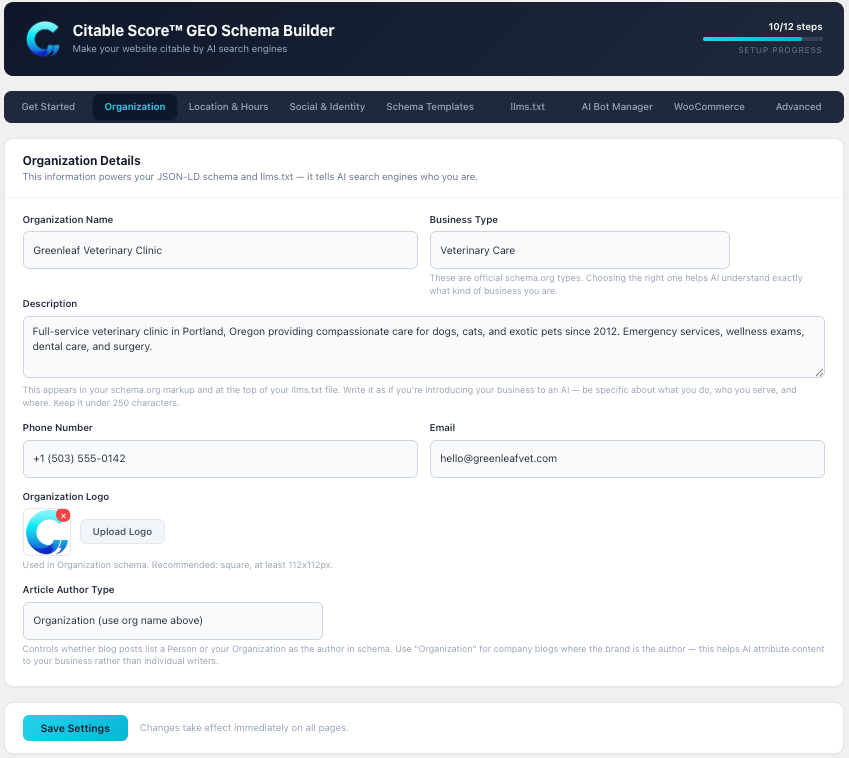
Organization settings — business type, description, logo, and article author type.
Pro tip: The description field is one of the highest-impact fields in the entire plugin. A description like “Family-owned Italian restaurant in downtown Portland serving handmade pasta and wood-fired pizza since 1998” gives AI much more to work with than “We serve great food.”
3. Location and Hours
Settings tab: Location and Hours
Physical location data is critical for local AI queries like “Where can I find a dentist near me?”
Address — Street, city, state, ZIP, and country. Generates a PostalAddress in your Organization schema.
Area Served — The geographic region your business covers, like “Greater Seattle Area” or “Northeast Ohio.” Helps AI match your business to regional queries.
GPS Coordinates — Optional. Click Advanced to expand. Right-click your address on Google Maps to copy coordinates.
Opening Hours — Use the day-pill selector. Click day abbreviations to select which days apply, set opening and closing times, and click + Add Hours for additional time blocks (weekend hours, lunch breaks). Online-only businesses can leave hours blank.
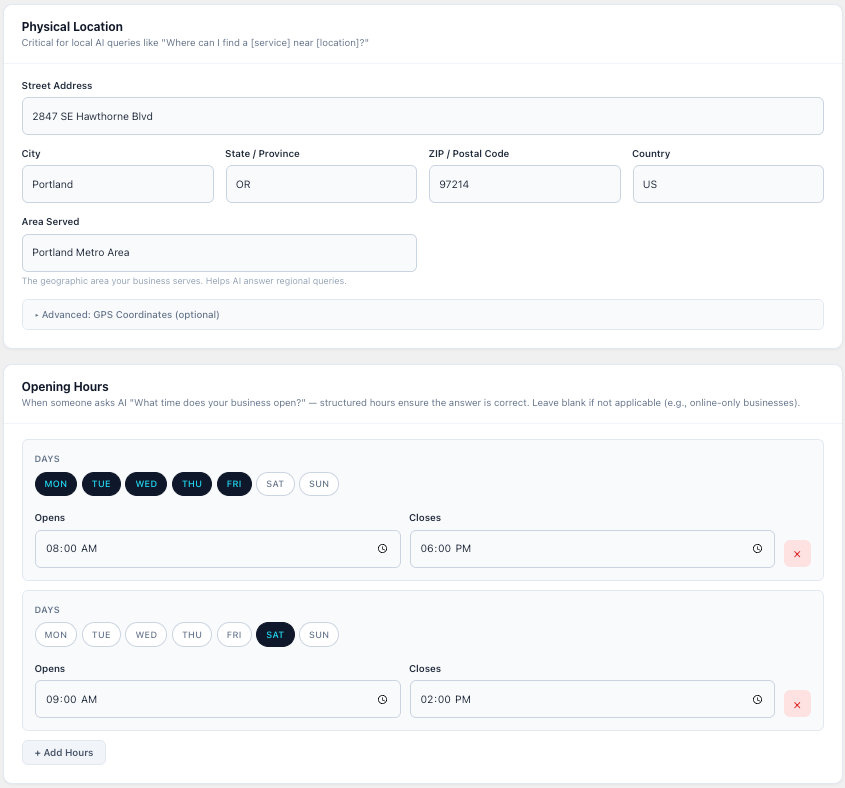
Location and opening hours with the day-pill selector and structured time inputs.
Pro tip: The Area Served field is underused but valuable. When someone asks AI “Who delivers plumbing services in the East Bay?” — this field connects your business to that region, even if your address is in a different city.
4. Social Profiles and Identity
Settings tab: Social and Identity
Social links become sameAs properties in your schema, strengthening brand identity signals. The more places AI can verify your business exists, the more confident it is in recommending you. Type just your handle for each platform — the URL prefix is added automatically.
Other Profiles — Click + Add Profile for Google Business Profile, Yelp, TripAdvisor, TikTok, Pinterest, or industry directories.
Founding Date — Establishes how long your business has existed.
Topics and Expertise — Comma-separated list. These become knowsAbout in schema, connecting your business to subject-matter queries like “estate planning, probate law, trust administration.”
Nonprofit Fields — When Business Type is Nonprofit Organization or Church, additional fields appear for Tax ID/EIN and nonprofit status.
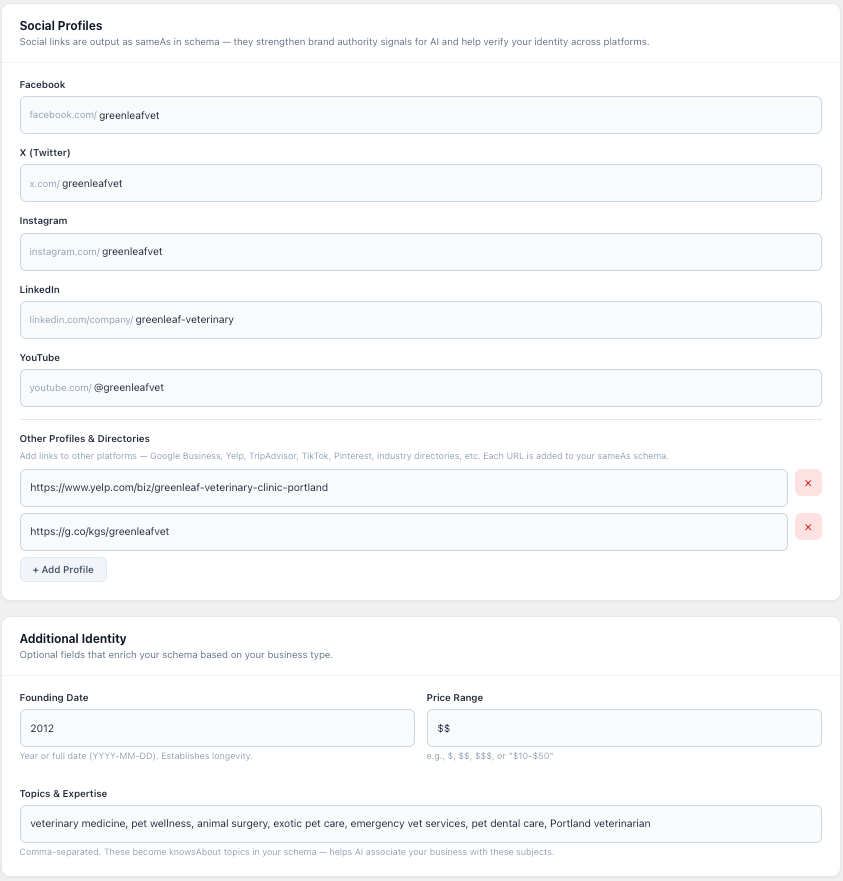
Social profiles with URL prefixes, directory links, founding date, and expertise topics.
Pro tip: Web mentions correlate with AI visibility at 0.664 — three times stronger than backlinks. Every directory listing and social profile that mentions your business makes it more likely AI will know who you are.
5. Schema Templates
Settings tab: Schema Templates
Templates let you configure schema once and reuse it across many pages. Ideal for service pages, location pages, or course pages that share the same structure.
Creating a template: Click + Create New Template, enter a name and schema type, optionally add fields, and save. Applying: Select the template from the Use Template dropdown when editing any page.
Link mode (default) — Updates cascade to all linked pages automatically. Detach mode — Copies values and breaks the link so the page becomes independent. Deleting a template auto-detaches all linked pages with their values preserved.

Schema Templates — create reusable configurations, link to pages, edit with live preview.
Pro tip: For agencies managing client sites, templates are transformative. Create a “Local Service Page” template, link every service page to it, and new pages get the right schema with one dropdown selection.
6. llms.txt — Your AI Overview
Settings tab: llms.txt
The llms.txt specification (llmstxt.org) is a plain-text file that gives AI crawlers a structured summary of your site. Think of it as robots.txt for AI.
/llms.txt — Standard version with all published pages
/llms-full.txt — Extended version including your 20 most recent blog posts
The content is auto-generated from your organization settings and published pages. It updates dynamically — add a new page and it appears automatically.
Custom override: Check “I want to customize my llms.txt content” to write your own, or use the auto-generated version as a starting point.
Per-page control: When editing any page, write a custom llms.txt description or exclude the page entirely.
Conflict detection: If Yoast, RankMath, or SEOPress is handling llms.txt, the plugin automatically defers. A notice explains what is happening.

Auto-generated llms.txt preview — updates automatically from your settings and pages.
Pro tip: Page descriptions in llms.txt are pulled from this priority chain: custom llms.txt description, then Yoast meta description, then page excerpt, then first 25 words. For your most important pages, write a custom description — it is your elevator pitch to AI crawlers.
7. AI Bot Manager
Settings tab: AI Bot Manager
Controls which AI crawlers can access your site by modifying robots.txt. For most businesses, allow all bots — this means your content can appear when customers ask AI questions. Blocking prevents citation.
Nine bots: GPTBot (ChatGPT), Google-Extended (Gemini/AI Overviews), PerplexityBot, ClaudeBot, FacebookBot (Meta AI), Applebot-Extended (Apple Intelligence), CCBot (Common Crawl), Bytespider (TikTok), cohere-ai (Cohere).
Each has an Allow/Block toggle with a warning explaining the specific trade-off. Default: all allowed. Changes take effect immediately.
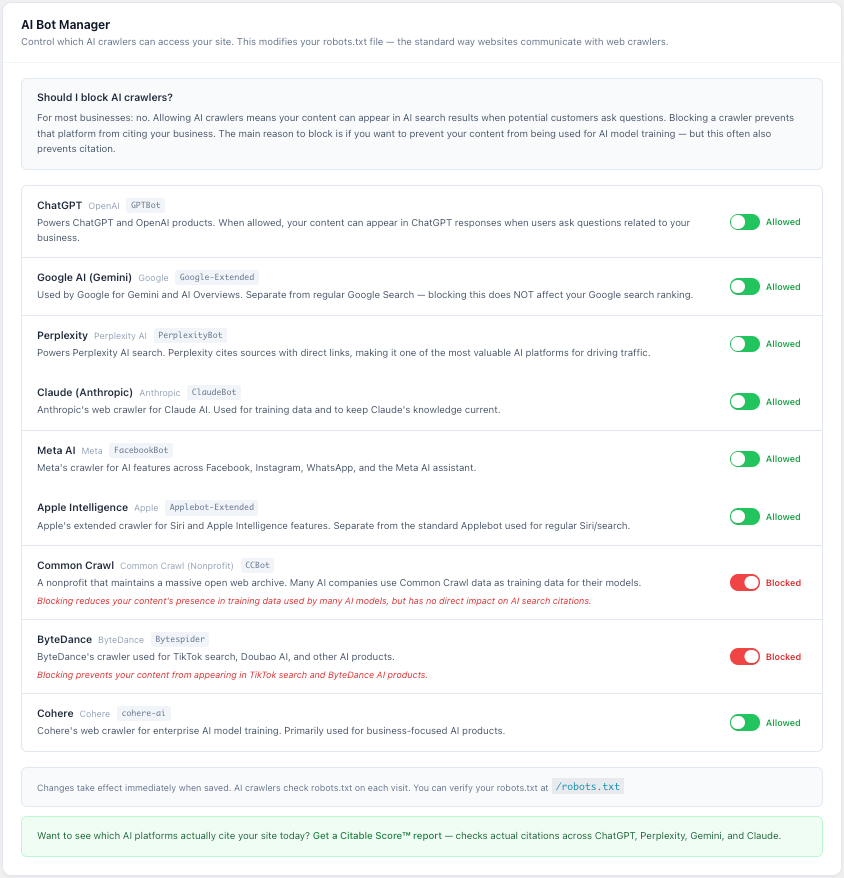
AI Bot Manager — toggle controls for 9 crawlers with educational trade-off descriptions.
Pro tip: Blocking Google-Extended does NOT affect your Google search rankings. It only prevents content from appearing in AI Overviews and Gemini. This is one of the most common misconceptions.
8. WooCommerce Integration
Settings tab: WooCommerce — Only appears when WooCommerce is active.
Product schema is auto-generated for every product page with zero configuration: name, description, SKU, price, availability (InStock/OutOfStock/BackOrder), images (up to 6), reviews, brand, weight, and GTIN. Simple products get Offer schema. Variable products get AggregateOffer with price range.
Brand detection checks four sources in order: pa_brand attribute, product_brand taxonomy, _brand meta, then your Default Brand setting.
Supplement mode (recommended) adds alongside WooCommerce built-in schema. Replace mode removes WooCommerce schema entirely — use only if you see duplicates.
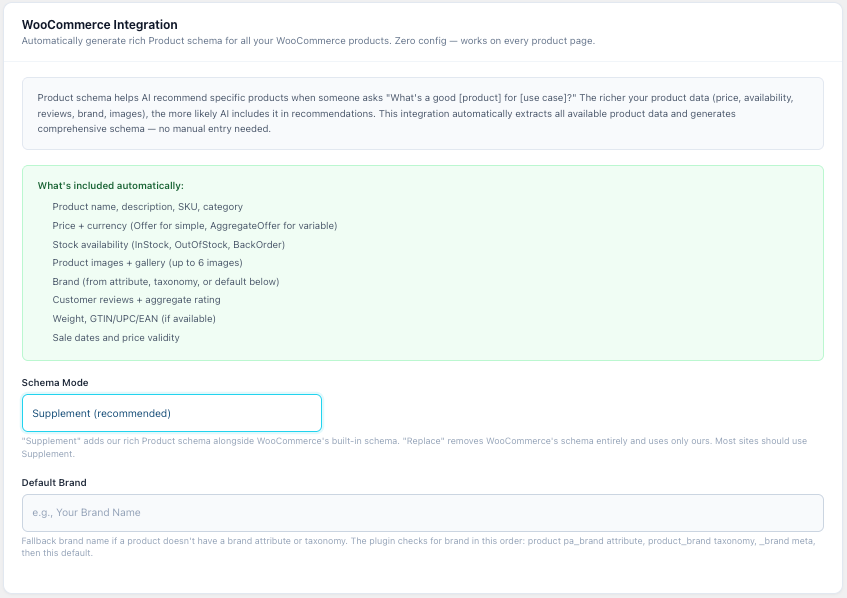
WooCommerce integration settings — schema mode selection and default brand configuration.
9. Per-Page Schema Controls
When editing any page or post, the GEO Schema — AI Visibility panel appears below the editor with full control over that page schema output:
Use Template — Apply a saved schema template in linked or detached mode.
Primary Schema Type — Override auto-detection or select Custom Schema Builder.
Schema Description — Custom JSON-LD description, overrides Yoast or excerpt.
llms.txt Description — Custom one-liner for how this page appears in llms.txt.
Exclude from llms.txt — Hide from llms.txt output entirely.
Additional Schema Types — Add FAQPage alongside your Service schema, for example.
Type-Specific Fields — Recipe ingredients, HowTo steps, Course details appear when relevant.
Video URL — Manual override for video embeds that auto-detection misses.

Page editor meta box — schema type picker, template dropdown, and AI visibility tips.
10. Custom Schema Builder
Select Custom Schema Builder from the type dropdown to access 18 schema.org types across 7 categories: Creative Work (SoftwareApplication, Book, Movie, MusicRecording, MusicAlbum), Podcast and Media (PodcastSeries, PodcastEpisode), Business and Commerce (JobPosting, Offer, Brand), People and Organizations (Person, Organization), Review and Rating (Review, AggregateRating), Education (OnlineCourse), Vehicles and Real Estate (Vehicle, RealEstateListing).
Choose a category, then a type. An explanation box appears. Fill in required fields (red asterisk), click Show All Properties for optional fields. Some types include nested sub-forms — SoftwareApplication has a Pricing section, JobPosting has Salary and Location. Every field has help text. Empty fields are omitted from output.
Pro tip: The Custom Schema Builder is perfect for pages that do not fit standard types — a job listing, a software product page, a podcast landing page. You get structured schema without writing a single line of JSON.
11. Auto-Detection Rules
When set to Auto-detect (Recommended), the plugin determines schema type using three methods:
URL slug (most reliable) — about becomes AboutPage, contact becomes ContactPage, faq becomes FAQPage, services becomes Service, events becomes Event, shop becomes Product, team becomes ProfilePage, gallery becomes ImageGallery, donate becomes DonateAction, pricing becomes CheckoutPage, portfolio becomes CollectionPage.
Title pattern matching — If the slug does not match, the plugin checks the page title for keywords.
Content analysis — Pages with 3+ question-format headings or Yoast FAQ blocks are detected as FAQPage.
Everything else defaults to WebPage. You can always override in the editor.
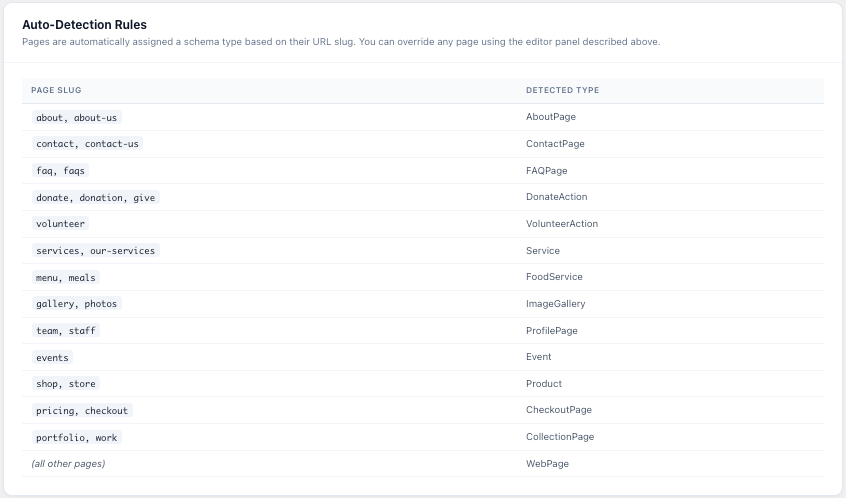
Auto-detection rules reference — shows which URL slugs map to which schema types.
12. Validating Your Schema
After setup, verify your output is correct:
Google Rich Results Test (search.google.com/test/rich-results) — Paste any page URL to see what Google reads from your structured data. This is the most authoritative validator.
Schema.org Validator (validator.schema.org) — Checks syntax and type compliance.
View Page Source — Search for “citable-geo-schema” to find the JSON-LD in the head section.
/llms.txt — Visit your site /llms.txt to see the AI overview. /llms-full.txt for the extended version.
/robots.txt — Verify AI bot settings. Look for the “AI Bot rules managed by GEO Schema” comment.
Pro tip: Run the Google Rich Results Test on your most important pages — home, about, services, contact. If the test shows your specific schema types (Organization, AboutPage, Service, ContactPage), everything is working correctly.